


How to control bullets in Microsoft Word
Quick reference to controlling bullets in Word
- Don't use Format > Bullets and Numbering. It looks inviting, but it's not not what you need.
 Don't use the toolbar bullet button. It's not what you need either.
- Apply List Bullet styles to paragraphs you want bulleted.
- Modify the List Bullet styles so you can have the font, paragraph and other formatting to suit your needs.
- Modify the bullets and indenting by modifying the numbering settings of the List Bullet styles. The styles will manage the bullets and the indents.
Managing bullets in anything but the simplest of Microsoft Word documents can easily drive you crazy. You constantly seem to be re-setting the indents, or re-applying the bullets, or the bullets change size.
You are not alone!
This page describes how to control bullets in Word. The key is to use Word's built-in List Bullet Styles. It will take you about 10 seconds to get one level of bullets working well. If you want to change the look of the bullets or use multiple-levels of bullets, it will take about 3 minutes to get control of bullets. Forever.
The huge advantage of setting up your bullets in the way described here is that it puts you in charge, not Word! It is stable and reliable. And, it makes it very easy to apply and control bullets, and to change bulleted paragraphs from one level of indent to the next.
Quick, fast, safe, reliable, effective, low-fat, low-carbohydrate, low-carbon emission way to bullet a paragraph
If you're a keyboard person
Type some text in your document. To add a bullet to the text, do ctrl-Shift-L (that's ctrl-Shift-lowercase L, which stands for List Bullet). Did you know you had a built-in shortcut to add bullets? No?
If you're a mouse person
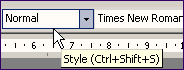
Figure 1: Locate the Style box on the Formatting toolbar.
Oh! You prefer to use your mouse?
- If you're using Word 2003 or an earlier version, then find the Style box on the Formatting Toolbar.
- If you're using Word 2007 or Word 2010 then Reinstate the Styles combo box in Microsoft Word 2007 and Word 2010 and it will appear on your Quick Access Toolbar.

Figure 2: You can reinstate the Styles combo box on the Quick Access Toolbar in Word 2007 and Word 2010
The Style box probably says "Normal". Hover over it and it will say "Style" (Figure 1 and Figure 2). If you have already used the List Bullet style in your document, click the arrow in the Style box and choose List Bullet. If you have not already used the List Bullet style in this document, hold down Shift and click the arrow next to the Style box. And choose List Bullet.
You will see that the Style box now says "List Bullet". This is good. The box tells you that you applied the List Bullet style to the paragraph.
For everyone
Sorry, I didn't quite catch what you said. Someone told you using styles was hard? Huh? Ctrl-Shift-L is hard?
If you want to change the way the bullet looks, or if you want multi-level indented bullets, read on. Otherwise, you now know how to safely, reliably add bullets to your text: ctrl-Shift-L, or, click the Styles box and choose List Bullet.
How to set up your List Bullet styles to get several levels of indented bullets
How to set up the List Bullet styles to get more than one level of indented bullets depends on What version of Word you have.
- If you are using Word 2003 or before, see How to control bullets in Microsoft Word 2000, 2002 and 2003.
- If you are using Word 2007 or Word 2010, see How to control bullets in Word 2007 and Word 2010.
Five other things to think about
Once you have your bullets all organized the way you want them, there are some more things to think about.
- Let's say you just created a paragraph in List Bullet style. Now, you press Enter to go on to create the next paragraph. What style will that paragraph be in? You can modify a style to stipulate the style Word uses for the following paragraph. So you could set it up so that, when you're entering text, a List Bullet paragraph will be followed by a List Bullet 2 paragraph.
- Make sure that "Automatically update" is not set for any of your List Bullet styles. Something that updates automatically sounds like such a positive thing to have! In fact, if you leave it ticked, it will drive you bonkers. Modify the style to un-tick "Automatically update".
- In your document, make sure that "Automatically Update Document Styles" is not ticked. Why? Because if you leave it on, you risk upsetting your bullets. How to turn off "Automatically Update Document Styles":
- In Word 2003 and earlier versions, select Tools > Templates and Add-Ins and un-tick the 'Automatically update document styles' box.
- In Word 2007 and later versions, show the Developer tab on the ribbon. On the Developer tab, click Document Template, and then un-tick the 'Automatically update document styles' box.
If you need to update the styles in your document from its template, see How to safely update a document's styles from its template without using the Organizer at the MS Word MVP FAQ site.
- It took a while to set up all your bullets. If you want your hard work to be available to all your new documents, modify each List Bullet style and tick the "Add to template" box. That will save your style settings in your template. Next time you create a new file your bullets settings will be available.
-
Alternatively, you can create a new template for documents that use a special bullet scheme. To do that, get your bullets just so, delete all the text and save as a Template, not a Document by choosing File > Save As and set the Save As Type to "Template".
Next time you choose File > New your new template will be available, complete with your bullet settings.
Grateful acknowledgement
Almost everything I learned about Word's numbering I learned from the Word newsgroups (especially the Microsoft Word Numbering newsgroup) and from the MS Word MVP FAQ site. The contributions of John McGhie (especially his article about Word's Numbering Explained on the MS Word MVP FAQ site) and Dave Rado are significant. The current page represents a mere summary and application of some of that work.